



Description
Download Fab's AutoBackup – Free Secure Backup Tool for Windows
Overview
Fab's AutoBackup is a lightweight, free security program designed specifically for Windows users who need a reliable backup solution without the bloat of larger suites. Developed by Fabrice Parisot, this utility falls under the Security → Backups sub‑category and has been part of our catalog since 2012. Although the download numbers are modest—757 total downloads and a single download last week—the software remains a solid choice for users of older Windows versions such as XP and earlier. The current build, version 3.6.1.492, was last updated on June 19 2012 and is available in English, Spanish, and German. Its small footprint makes it ideal for machines with limited storage, and the interface is intentionally simple, letting you focus on protecting your files rather than navigating complex settings. Whether you are looking to safeguard personal documents, business data, or system configurations, Fab's AutoBackup offers a straightforward, secure way to schedule and store backups on local drives or external media.
Key Features
- Automatic scheduled backups – set daily, weekly, or monthly intervals.
- Support for multiple destination types: local folders, USB drives, and network shares.
- Incremental backup engine – only new or changed files are copied, saving time and space.
- Compression options to reduce storage usage while maintaining data integrity.
- Simple restore wizard – select a backup set and recover files with a few clicks.
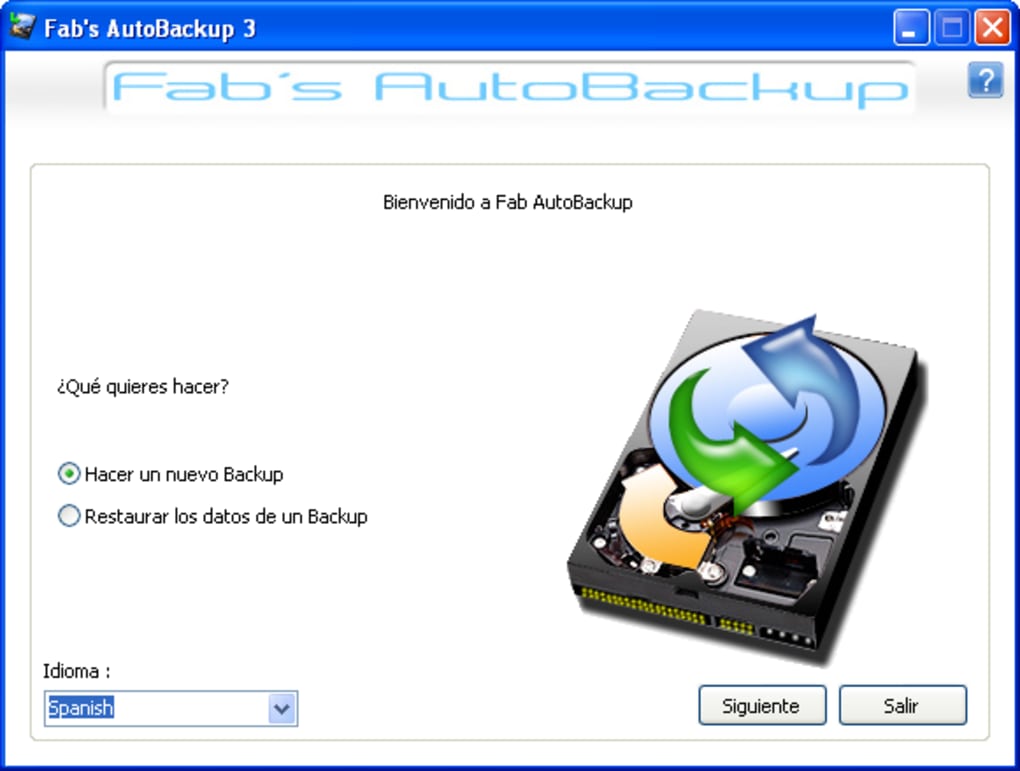
- Multilingual interface (English, Spanish, German) for broader accessibility.
- Low system resource consumption – runs quietly in the background without slowing down older PCs.
- File‑type filters – include or exclude specific extensions such as .docx, .pdf, or .exe.
- Secure log file – records each backup operation for audit and troubleshooting.
- Free license – no hidden fees, premium upgrades, or mandatory registrations.
The feature set is deliberately concise, focusing on core backup functionality that matters most to users who value security and simplicity. Unlike many modern backup suites that bundle cloud sync, ransomware protection, and other premium services, Fab's AutoBackup sticks to its promise: a secure, free, and easy‑to‑use backup tool for Windows.
Installation & Usage Instructions
Getting Fab's AutoBackup up and running is a breeze, even for users with limited technical experience. Follow these steps to install and start protecting your data:
- Download the installer: Click the “Download” button on the official page to retrieve the
FabAutoBackup_Setup.exefile. - Run the installer: Double‑click the file and accept the user agreement. The wizard will guide you through a standard installation, defaulting to
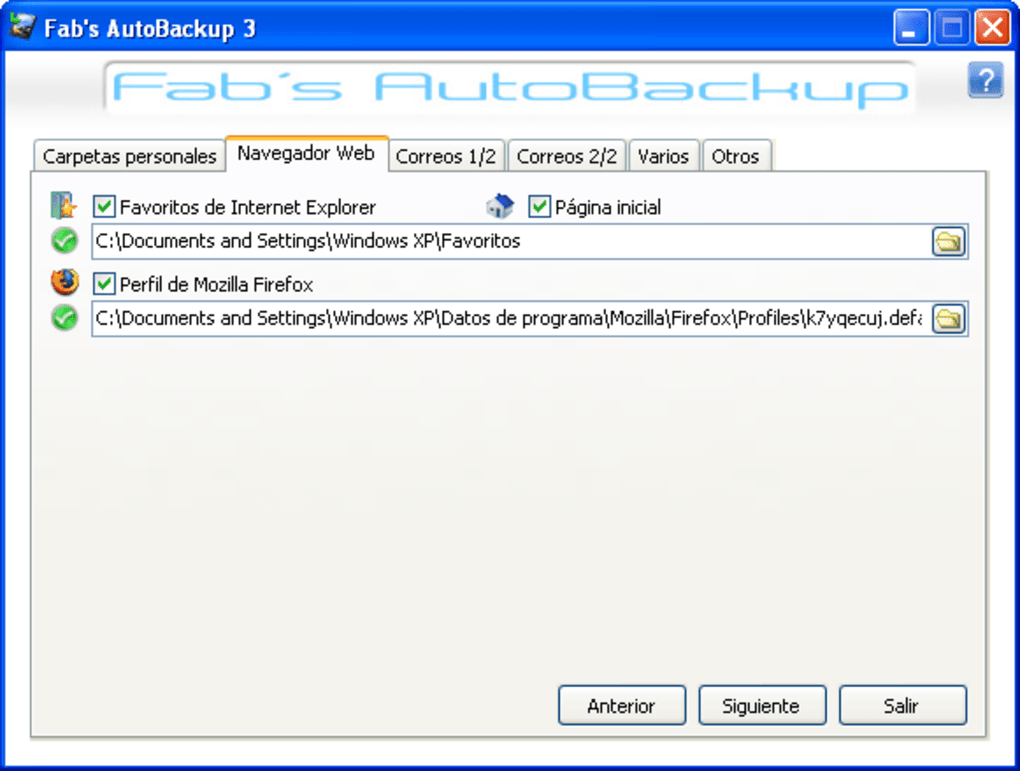
C:\Program Files\FabAutoBackup. - Choose backup destinations: After installation, launch the application. In the “Settings” tab, click “Add Destination” and browse to the folder, external drive, or network share where you want backups stored.
- Configure a schedule: Navigate to the “Schedule” tab. Select the frequency (daily, weekly, monthly), the time of day, and the days of the week you prefer. The program will automatically start the backup process at the defined intervals.
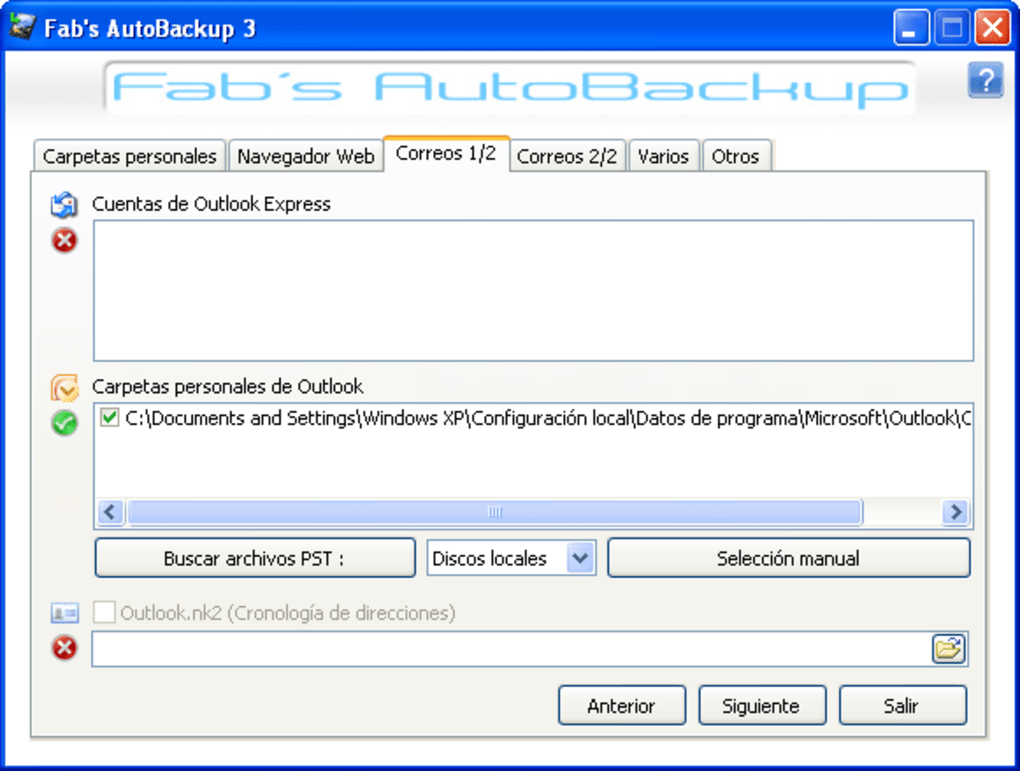
- Select files and folders: In the “Sources” section, add the directories you wish to protect. Use the filter options to exclude temporary files or system folders that don’t need backing up.
- Enable compression (optional): For tighter storage usage, enable the “Compress backups” toggle. This uses a built‑in zip algorithm that balances speed and compression ratio.
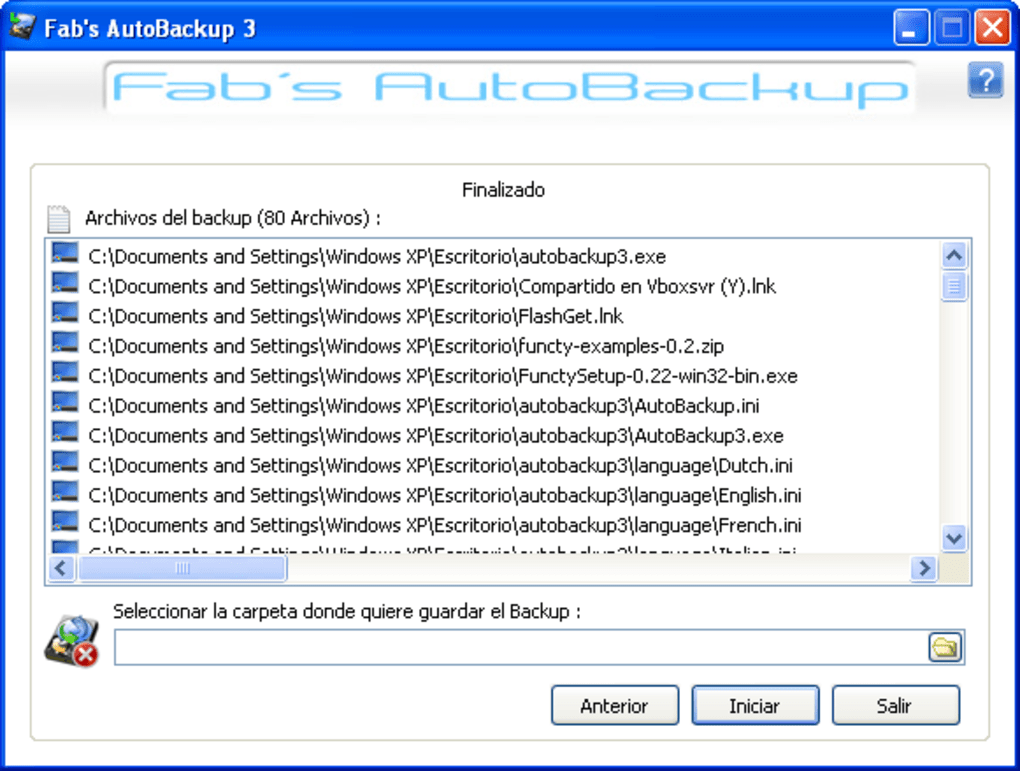
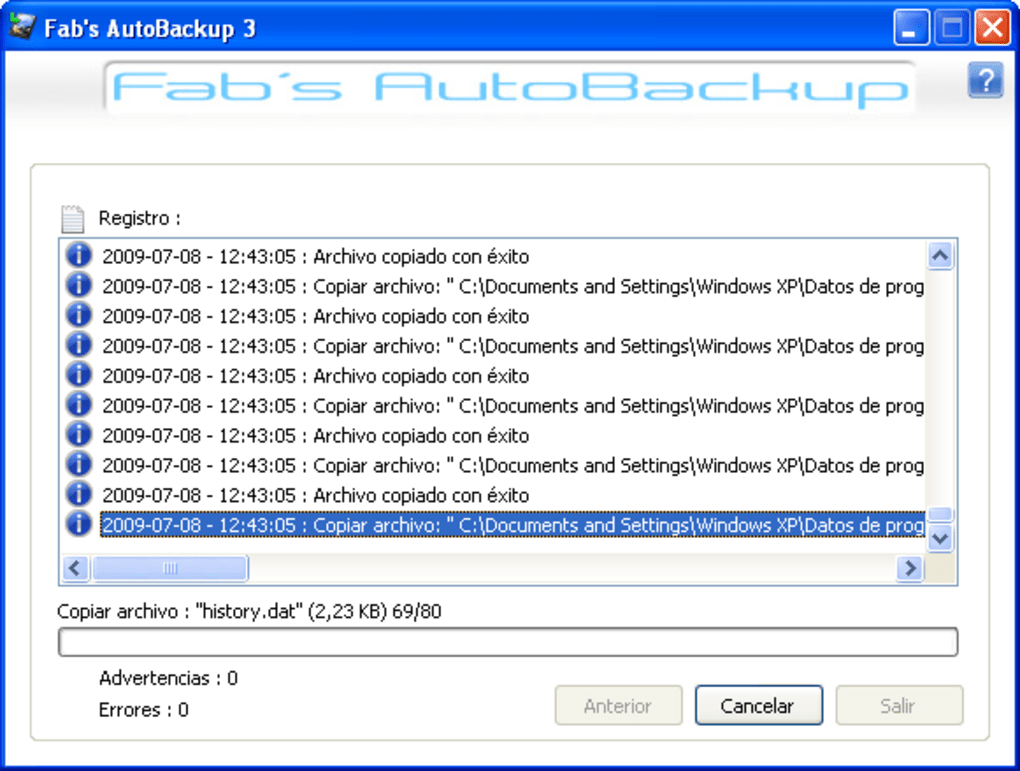
- Run a manual backup: Click “Backup Now” to initiate an immediate backup. The progress bar provides real‑time feedback, and the log window records any warnings or errors.
- Restore files: If you need to retrieve a file, open the “Restore” tab, select the backup set, and browse the tree view to locate the desired file. Click “Restore” and choose the destination folder.
All settings are saved automatically, so you can close the application after the first run. The program will continue to run in the system tray, ready to execute scheduled tasks without further user interaction. For advanced users, the configuration file (config.ini) can be edited manually to fine‑tune parameters such as retry attempts, log retention, and email notifications.
Compatibility, Pros & Cons
Fab's AutoBackup is compatible with Windows XP and all earlier versions of the Windows operating system. It runs natively on 32‑bit and 64‑bit architectures, making it suitable for legacy hardware that cannot support newer, resource‑heavy backup suites. Because the software predates modern Windows 10 and 11 environments, it may not receive official support for those platforms, but many users report successful operation on Windows 7 and Windows 8 when running in compatibility mode.
Pros
- Free of charge – no subscription or hidden costs.
- Very small installation size, ideal for older PCs with limited disk space.
- Low CPU and memory usage, allowing continuous background operation.
- Simple, intuitive interface that reduces the learning curve.
- Incremental backups save time and bandwidth.
- Multilingual support broadens its accessibility.
Cons
- No native cloud integration – backups are limited to local or network storage.
- Last official update was in 2012, so security patches may be outdated.
- Limited to Windows XP and earlier; newer Windows versions may require compatibility tweaks.
- No built‑in encryption for backup files, requiring external tools for added security.
- Absence of modern reporting dashboards or mobile apps.
Overall, Fab's AutoBackup shines as a no‑frills, free backup solution for Windows legacy systems. Its straightforward design and low resource footprint make it a practical choice for users who need dependable local backups without the overhead of cloud services. While the lack of recent updates and advanced security features may deter power users, the program still delivers solid value for its target audience.
Frequently Asked Questions (FAQ) & Conclusion
Is Fab's AutoBackup truly free, or are there hidden fees?
Yes, the software is completely free. There are no hidden fees, trial periods, or premium upgrades required to use any of its features.
Can I use Fab's AutoBackup on Windows 10 or 11?
The program was built for Windows XP and earlier, but many users have reported success on Windows 7, 8, 10, and 11 by running the installer in compatibility mode (set to Windows XP SP3). However, official support for newer OS versions is not provided.
Does Fab's AutoBackup encrypt my backup files?
The native version does not include built‑in encryption. If encryption is required, you can compress the backup folder with a tool such as 7‑Zip and apply a password.
How much disk space does the program itself occupy?
The installer is under 5 MB, and after installation the application consumes less than 20 MB of disk space, making it suitable for machines with very limited storage.
Can I schedule backups to run when my computer is idle?
Yes. In the “Schedule” settings you can enable the “Run only when idle” option, which tells the program to start the backup only after the system has been idle for a configurable period.
In summary, Fab's AutoBackup delivers a solid, free backup solution for Windows users who prioritize simplicity, low resource usage, and local storage. While it lacks modern cloud features and recent security updates, its core functionality remains reliable for protecting essential files on legacy systems. If you’re looking for a straightforward tool to automate regular backups without paying for a heavyweight suite, Fab's AutoBackup is worth a try.
Ready to secure your data? Click the download button below, install the program, and configure your first backup in minutes. Protecting your files has never been this easy—or this affordable.
Guides & Tutorials for Fab s AutoBackup
How to install Fab s AutoBackup
- Click the Preview / Download button above.
- Once redirected, accept the terms and click Install.
- Wait for the Fab s AutoBackup download to finish on your device.
How to use Fab s AutoBackup
This software is primarily used for its core features described above. Open the app after installation to explore its capabilities.
User Reviews for Fab s AutoBackup 0
No reviews found





